Control of team spending: where the money goes — with receipt photos and by category
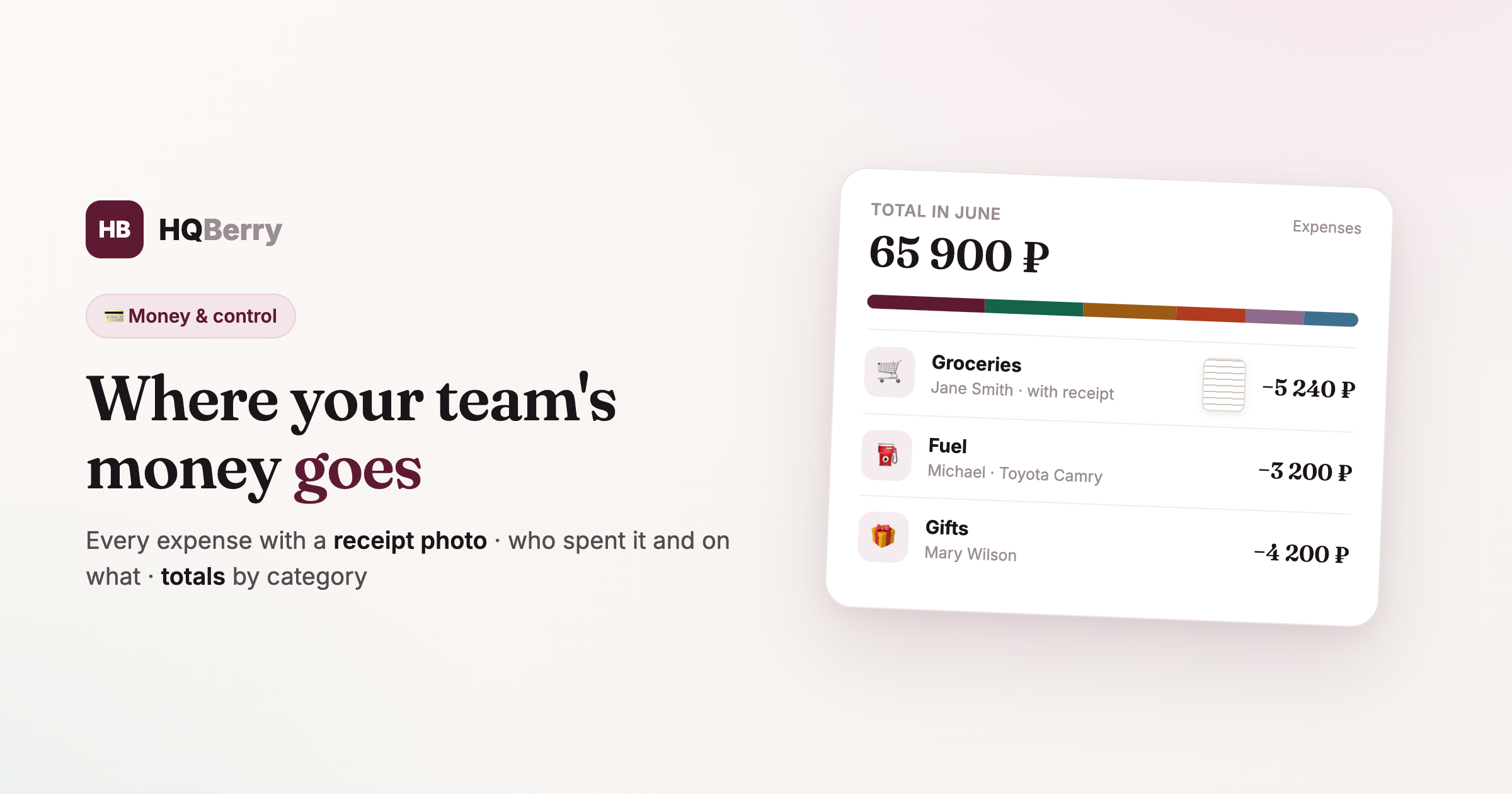
You gave the driver cash for fuel. The assistant bought groceries. The housekeeper restocked cleaning supplies. At the end of the month you have a pile of receipts (or none) and a vague feeling that money is leaking somewhere. Where exactly — unclear.
That's how control over money slips away. Not because of theft, but because the team's expenses aren't gathered anywhere: some in your head, some in chats, some on a crumpled receipt in the glovebox. The Expenses section in HQBerry gathers everything in one place — with a receipt photo, the name of whoever spent it, and a category. Let's see how it works.
Every team expense in one place All gathered
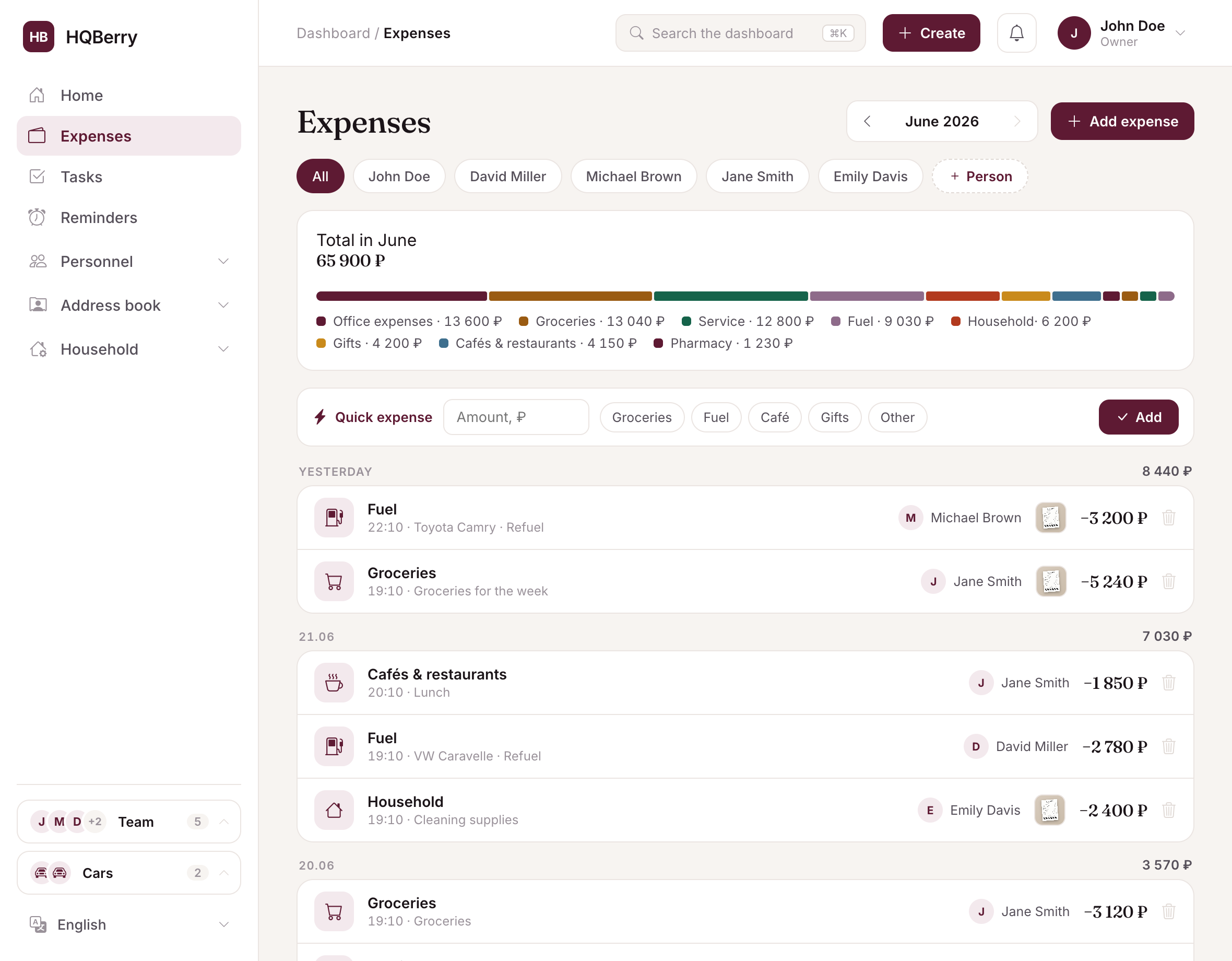
Each expense is an amount, a category, a date and the person who logged it. At the top — the monthly total and a clear breakdown: this much on fuel, this much on groceries, this much on service. Where the money goes is clear at a glance, with no reconciling receipts by hand.
Below, expenses run by day — "Today", "Yesterday" and so on — with a total for each day. You can page through months and compare.
Receipt photo — not just your word Receipt photo
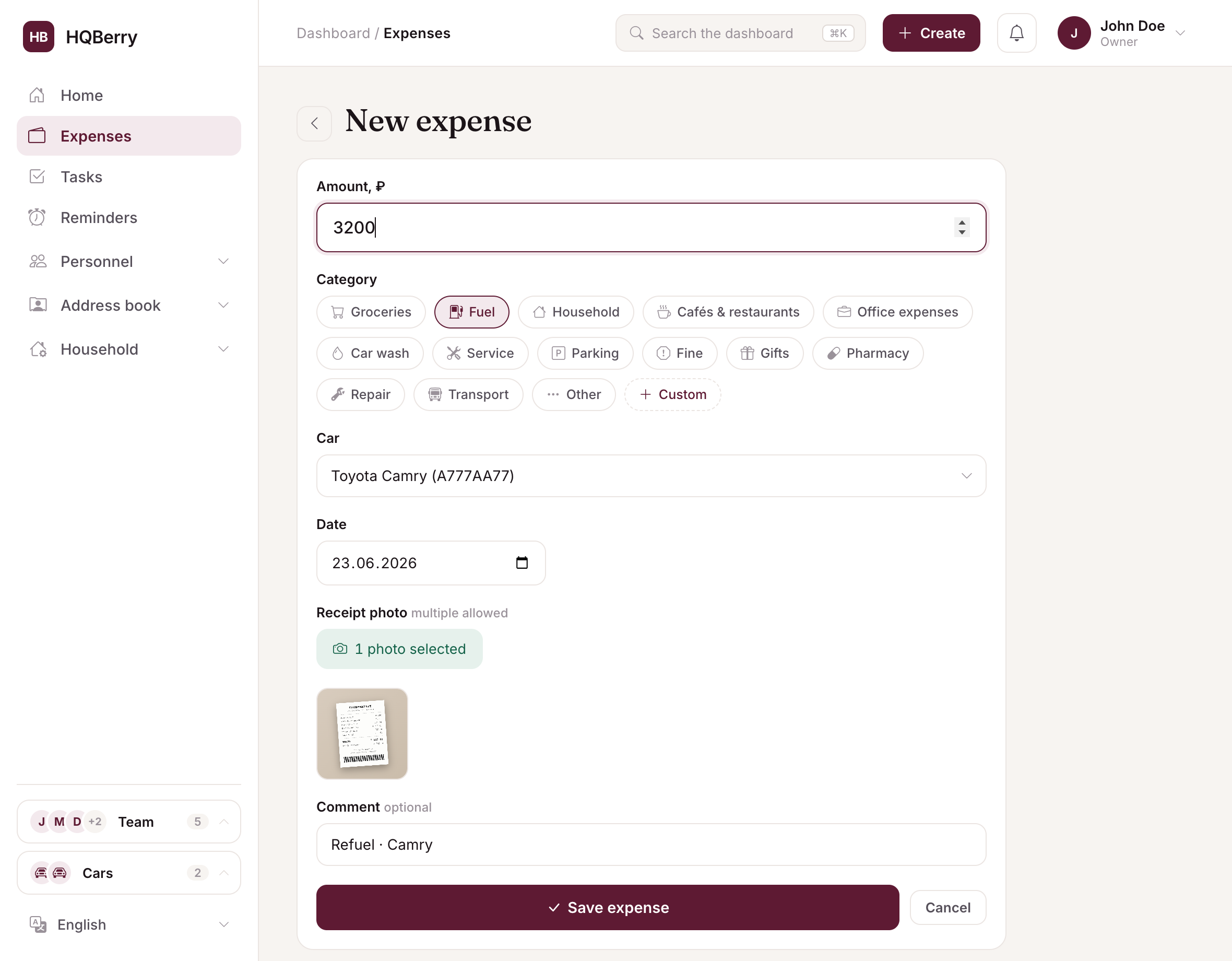
This is what turns "I spent 3,000" into a verifiable fact. To any expense the employee attaches a receipt photo — straight from their phone, several if needed. The receipt stays on the expense card, and at any moment you can check what exactly the money was for.
No paper piles, no "the receipt got lost". Snap it — attach it — forget it.
Link to a car and a person
An expense rarely hangs in the air — it usually relates to something. In HQBerry you can link it:
- to a car — fuel, car wash, service, parking and fines land on a specific vehicle. Then it's clear how much each car eats up.
- to a person — a gift or an expense on a specific person links to their card. Handy for gifts: you can see what you gave and when.
The link fields show up by category: pick "Fuel" and a car selector appears, pick "Gifts" and a person selector appears. Nothing extra.
Who spent it and on what — clear at once
The owner's main question is "what is the team spending money on". Every expense carries the name of whoever logged it, and the list can be filtered by employee: show only the driver's expenses or only the assistant's. You can tell at once who spends how much and on what, without investigations or guesswork.
Quick expense: the employee logs it in seconds
For expenses to actually make it into the system, logging them has to be easier than not logging them. So there's a quick expense: an amount, a tap on a category — done. The employee doesn't need to open a form and fill in fields.
This is the very principle of HQBerry: the team logs, you watch. At the petrol station the driver punches in the amount and snaps the receipt in ten seconds — and at the end of the day you simply see a tidy list.
Analytics: clear where the money goes Analytics
When expenses pile up, a view from above helps. In analytics you can see how spending changed month to month, where most of it goes this month, and how much each team member spends. Not a table of numbers, but clear charts that immediately show where money is growing and whether it's worth a closer look.
Categories — to fit your life
The base categories cover most expenses: fuel, groceries, cafés, household, service, gifts, pharmacy and more. But if you need your own — say "Pool" or "Dog food" — you can add it in one click right while creating the expense. The system adapts to your life, not the other way around.
Frequently asked questions
How do I control what an employee spends money on? All the team's expenses are gathered in the "Expenses" section: with an amount, category, receipt photo and the name of whoever spent it. The list can be filtered by employee and paged through by month — you can tell at once who spends on what.
Can I attach a receipt photo? Yes. To each expense you attach one or several receipt photos straight from the phone. The receipt is kept on the expense card — at any moment you can see what the money was for.
Who logs the expenses — me or the employees? Both. Employees log their own expenses (there's a "quick expense" — an amount and a category in a couple of taps), and you see the overall list and totals. The principle is simple: the team logs, the owner watches.
Can I see how much each car costs? Yes. Fuel, car wash, service, parking and fines can be linked to a specific vehicle, and then you can see how much each car eats up.
Can I add my own category? Yes. Besides the base categories (fuel, groceries, cafés, household and others) you can add your own in one click right while creating the expense.